Follow these steps to set up an email account in Thunderbird:
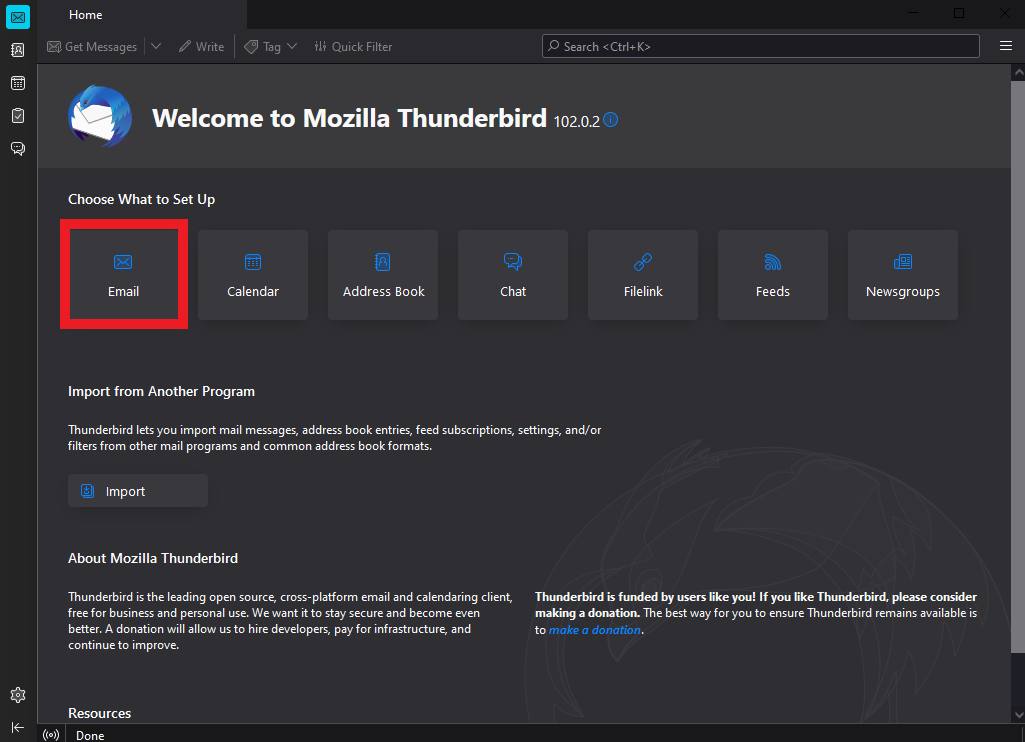
1. Open the Thunderbird application, then click the Email icon.
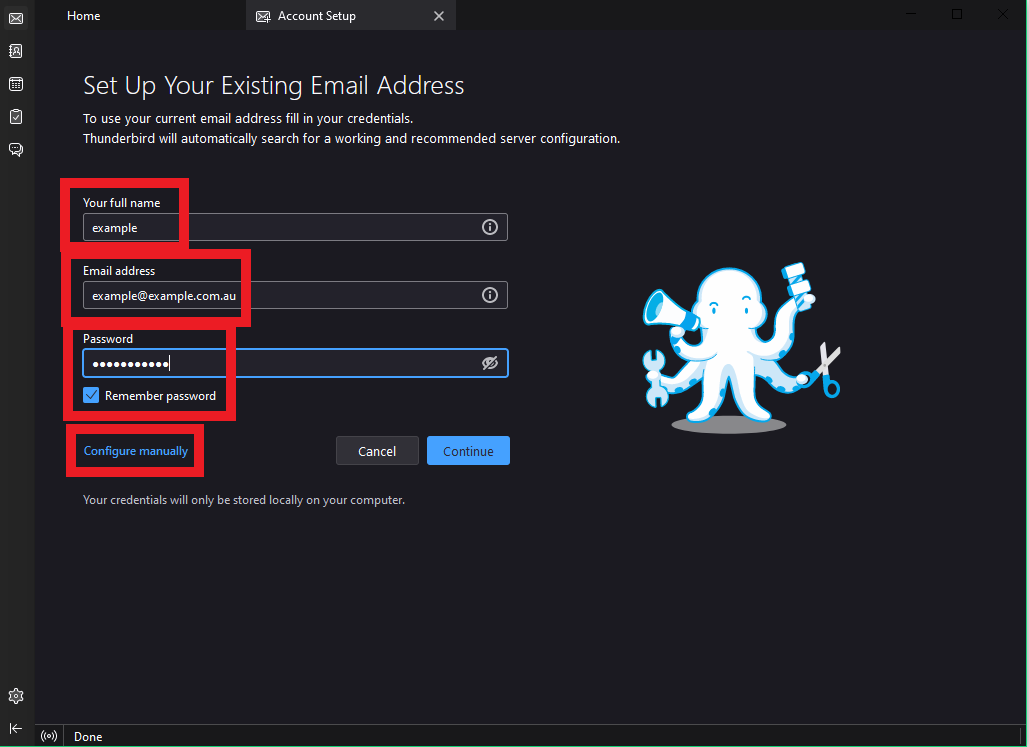
2. Fill out the form with your details.
Your full name: Enter your full name.
Email address: The email address you wish to set up.
Password: The password for your email address.
Once completed, click the blue text Configure manually.
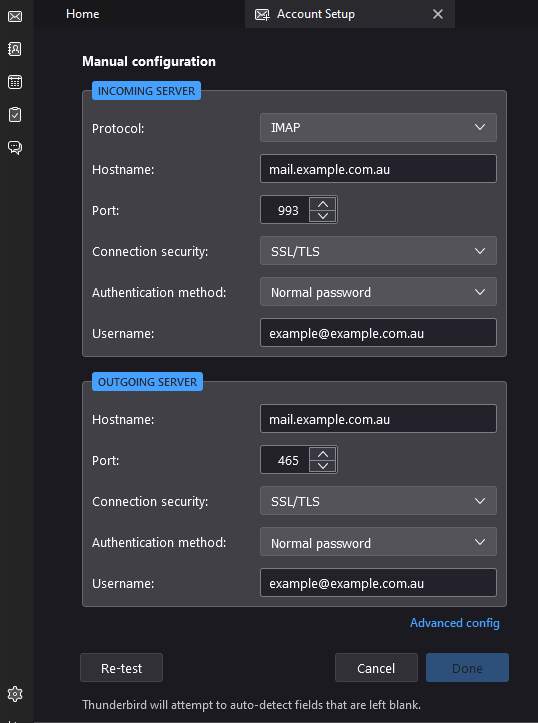
7. Fill out the form with your server settings to connect your account.
For IMAP configuration (recommended):
INCOMING SERVER
Protocol: IMAP.
Hostname: Refer to your Hosting Account Information email.
Port: 993.
Connection Security: SSL/TLS.
Authentication method: Normal password.
Username: Your email address.
OUTGOING SERVER
Hostname: Refer to your Hosting Account Information email.
Port: 465.
Connection security: SSL/TLS.
Authentication method: Normal password.
Username: Your email address.
For POP3 configuration:
INCOMING SERVER
Protocol: POP3.
Hostname: Refer to your Hosting Account Information email.
Port: 995.
Connection Security: SSL/TLS.
Authentication method: Normal password.
Username: Your email address.
OUTGOING SERVER
Hostname: Refer to your Hosting Account Information email.
Port: 465.
Connection security: SSL/TLS.
Authentication method: Normal password.
Username: Your email address.
4. Once completed, click the Done button.
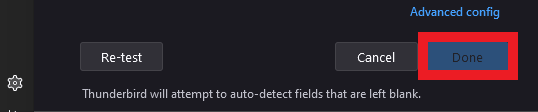
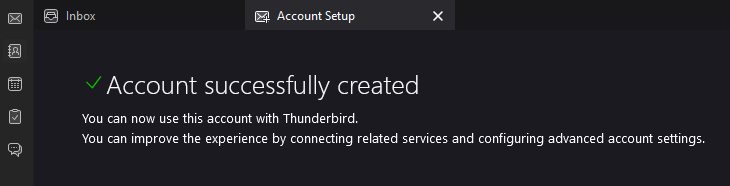
5. Allow time for the email settings to connect to the server. When finished, you will receive a message saying, “Account successfully created”.