

Click here for cPanel instructions.
Click here for DirectAdmin instructions.
Follow these steps to create email accounts in cPanel:
1. Log in to your cPanel account.
For instructions on how to log in to cPanel, please click here.
2. Under the Email section, click Email Accounts.
3. Click the +Create button.
4. Enter the settings for your new email account.
Domain: You can select your domain from the dropdown box regarding the email address you want to create.
Username: The username of your email address (i.e. info/admin/support@domain.com)
Password: The password you will use to log in to your email address.
You can access optional settings by clicking the Edit Settings button.
Storage Space: You can manually set the storage space for your email address or select 'Unlimited' if you wish to have unlimited storage space for that account. (Please note: Unlimited storage is limited to your hosting plan's storage total.)
5. Once you have completed the form, click the +Create button to create your new email account.
Follow these steps to create email accounts in DirectAdmin:
1. Log in to your DirectAdmin account.
For instructions on how to log in to DirectAdmin, please click here.
2. Under E-mail Manager, click E-mail Accounts. Alternatively, you can enter ‘E-mail Accounts’ in the search bar at the top of the page.


3. Click the Create Account button.

4. Enter the settings for your new email account.
Username: The name of the email address. (Please note: The domain name is already prefilled.)
Password: It must be at least 9 characters long and contain a lowercase letter, uppercase letter and number.
E-mail Quota (MB): The email storage for the account. By default, it is set to 50.
Send Limit: The number of emails this account can send per hour. (Please note: This does not override the “Emails per Hour” specified in your plan.)
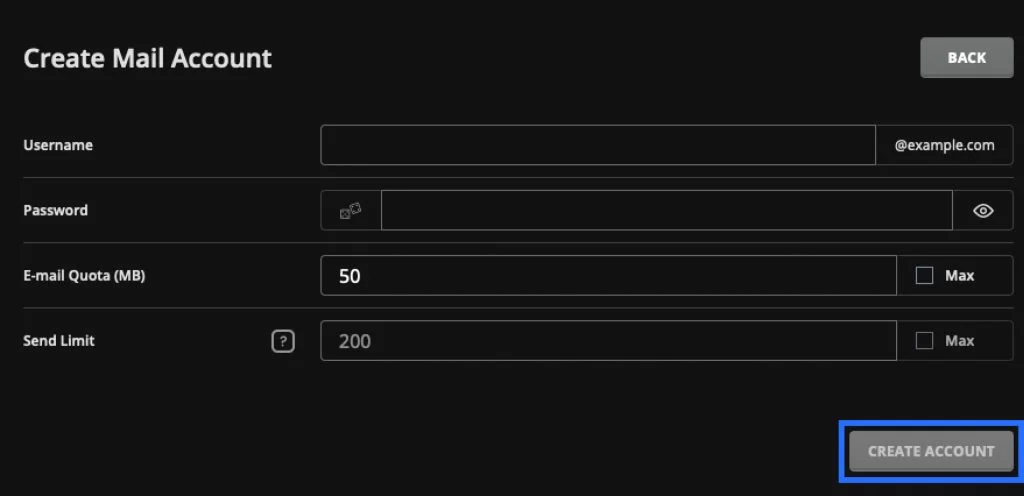
5. Once you have completed the form, click the Create Account button to create your new email account.