

The info.php file is an excellent way to verify your PHP settings. Once created, you can access this page online to view the current PHP settings enabled for your website.
Follow these steps to create a PHP info file in DirectAdmin:
1. Log in to your DirectAdmin account.
For instructions on how to log in to your DirectAdmin account, please click here.
2. Under System Info & Files, click File Manager.

3. Go to the public_html folder directory. (In this example, the domain name is example1.com.)
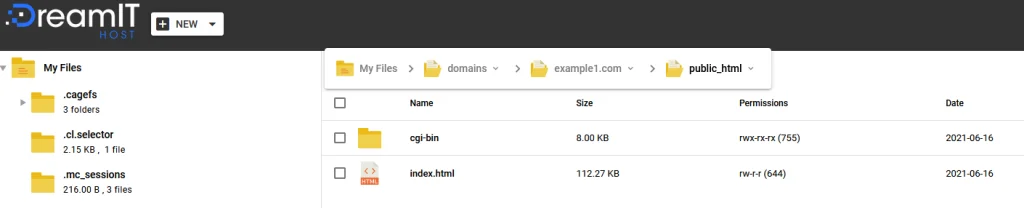
4. You must create a new file. Click the [+] NEW button on the top left-hand side of the screen. Hover over Text File, then click Plain Text.
![Screenshot: [+] NEW Drop-Down List](https://cdn.dreamithost.com.au/wp-content/uploads/2021/10/HowToCreateAPHPInfoFileInDirectAdmin_Image3.png)
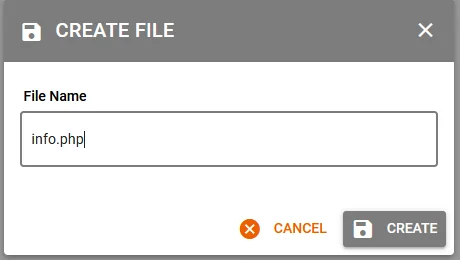
5. Name the file “info.php”, then click the Create button.
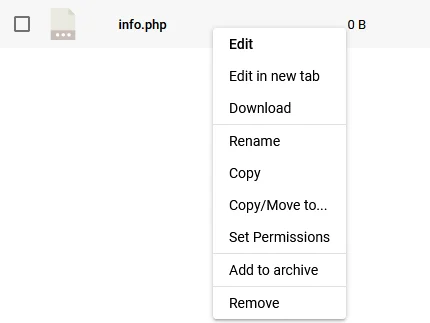
6. Now that you have created the file, right-click on the file, then click Edit.
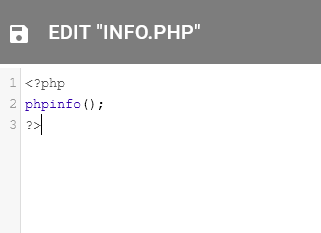
7. When the page opens, enter the following, then click Save.
<?php
phpinfo();
?>
8. Now that this file has been created, you can access the file to view your PHP settings.
Note: You would type in “yourdomainname/info.php” into your web browser. As per our example, you would type in “example1.com/info.php”.