

If you have forgotten your login for your WordPress backend, you can reset your WordPress password via phpMyAdmin. It consists of two steps, finding the database your website is using, then accessing phpMyAdmin.
Follow these steps to change your WordPress password via phpMyAdmin in cPanel:
STEP ONE: Find the Database Your Website is Utilising
1. Log in to your cPanel account.
For instructions on how to log in to your cPanel account, please click here.
2. Under the Files section, click File Manager.

3. Go to the location of your wp-config file (most commonly in your public_html folder).

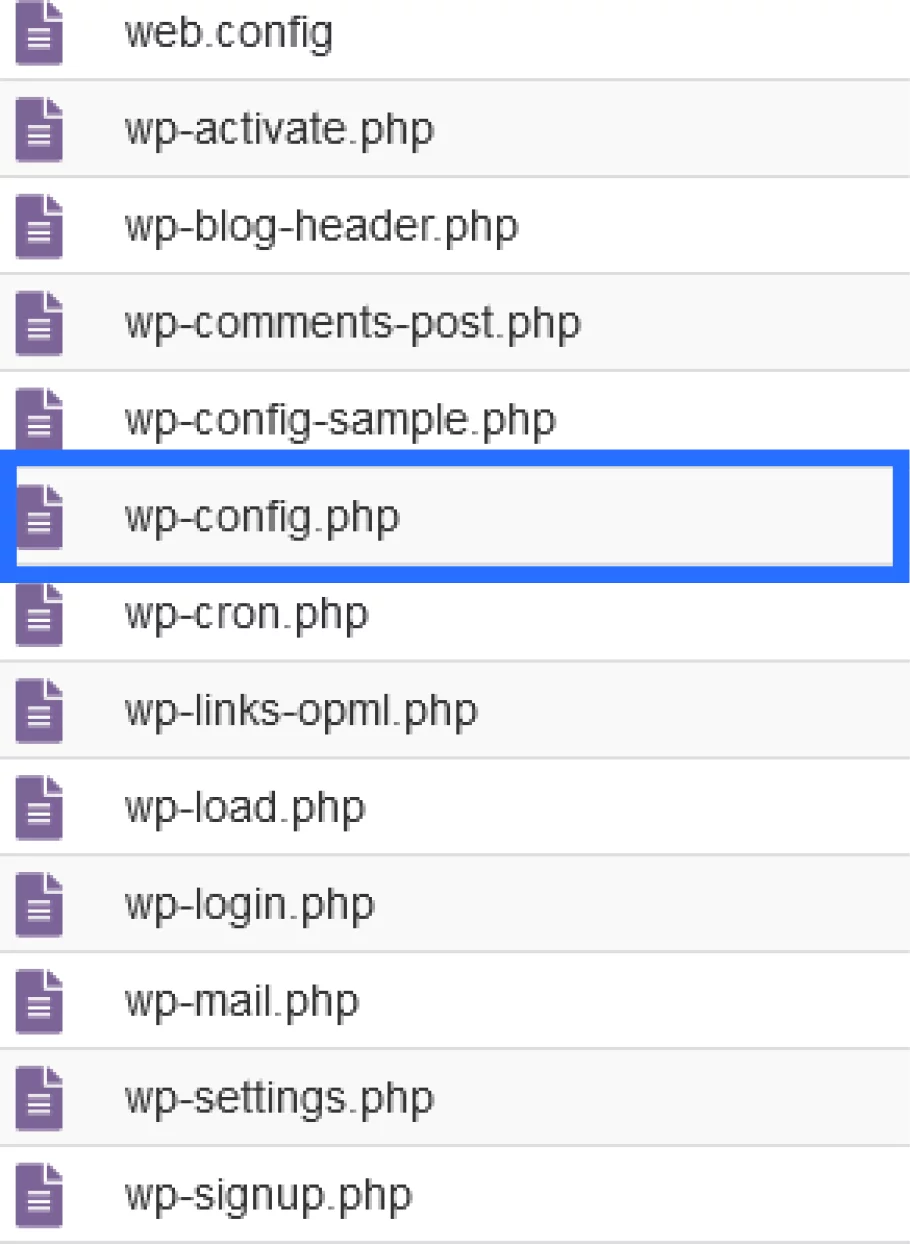
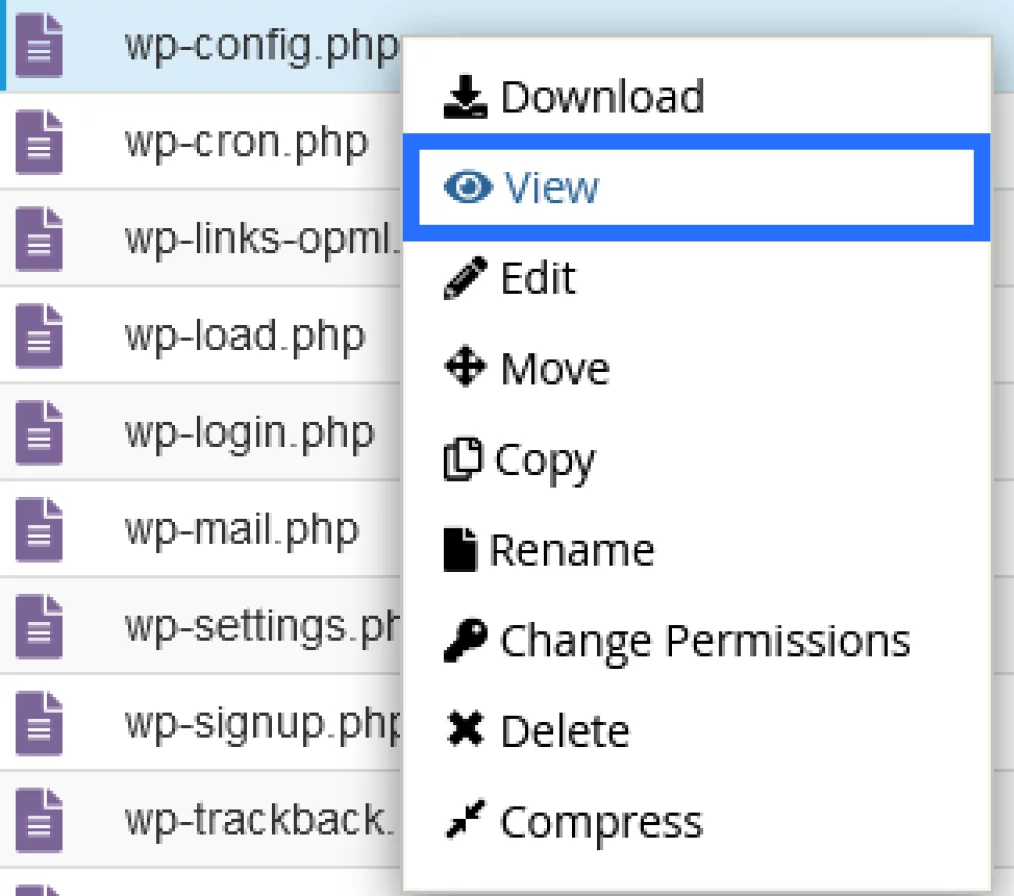
4. Once you have located your wp-config file, right-click the file, then click View.
5. This will display the contents of the wp-config file. Look for the code that says: define( ‘DB_NAME’, ‘NameOfDatabase’ );
Note: The database name will be where ‘NameOfDatabase’ is mentioned in the above code. In this example, the database name is ‘tofumomo_wp194’.

STEP TWO: Access phpMyAdmin in cPanel
6. Under the Databases section, click phpMyAdmin.

7. On the left side panel, select the database listed in your wp-config file. (In this case, the database is ‘tofumomo_wp194’, as per the previous screenshots.)
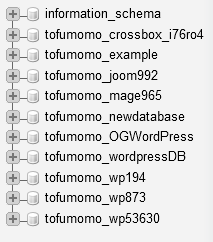
8. Once you select the database, it will provide a list of tables. You need to locate the table that includes the list of users who can access your WordPress backend.
This table may have different names depending on how the website was built. It will usually contain the word ‘users’ in the title. In this scenario, the table name you want to select is ‘wpa9_users’. It will open a list of entries within the table ‘wpa9_users’.
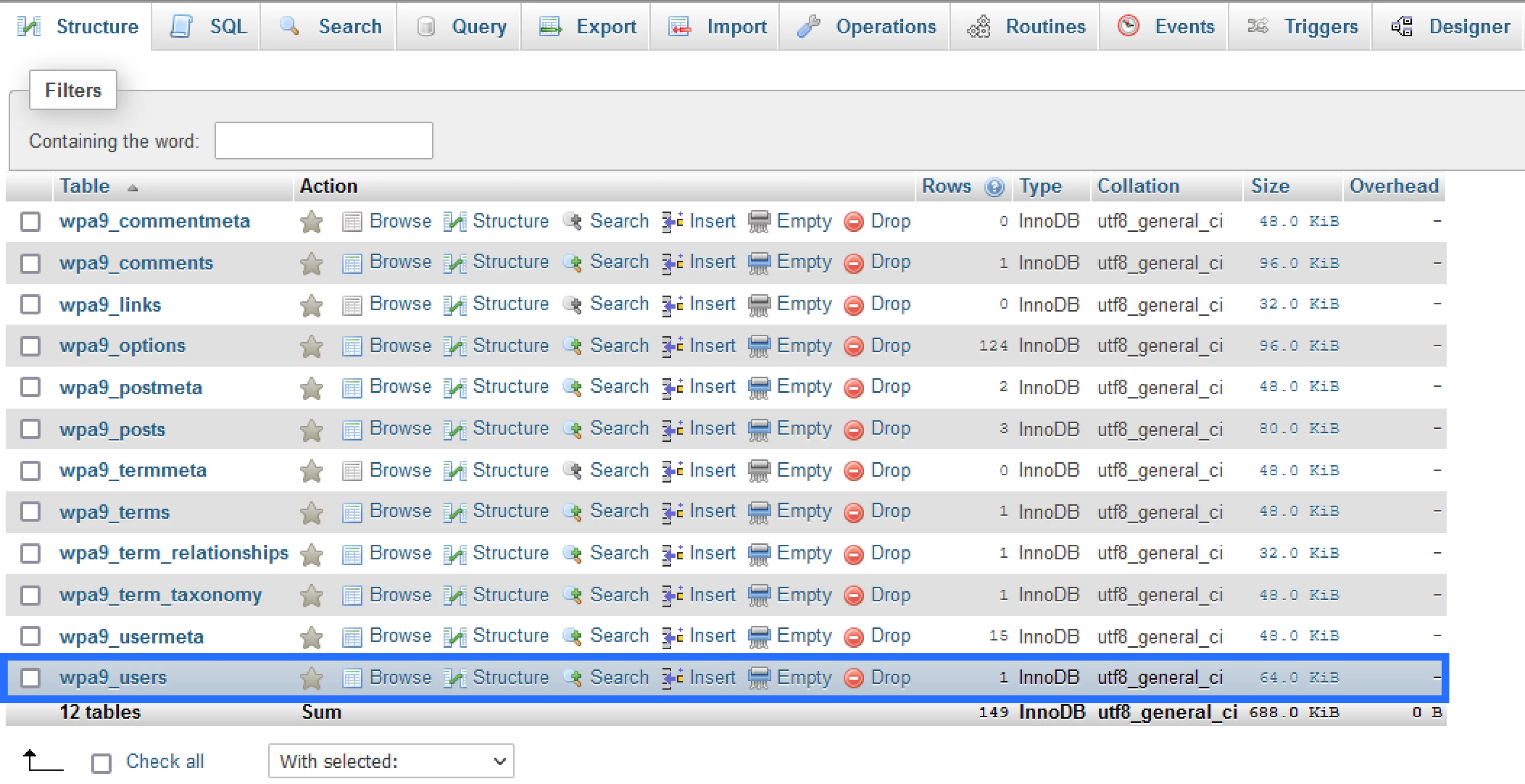
9. It will open a list of entries within the table ‘wpa9_users’. In this example, there is only one user.
You want to look for your WordPress username under the user_login column. The username in this example is '6gycj'.

10. Now that you have located your username, click Edit.

11. You will see a list of entries. To change your WordPress password, you must edit the information for the user_pass row.
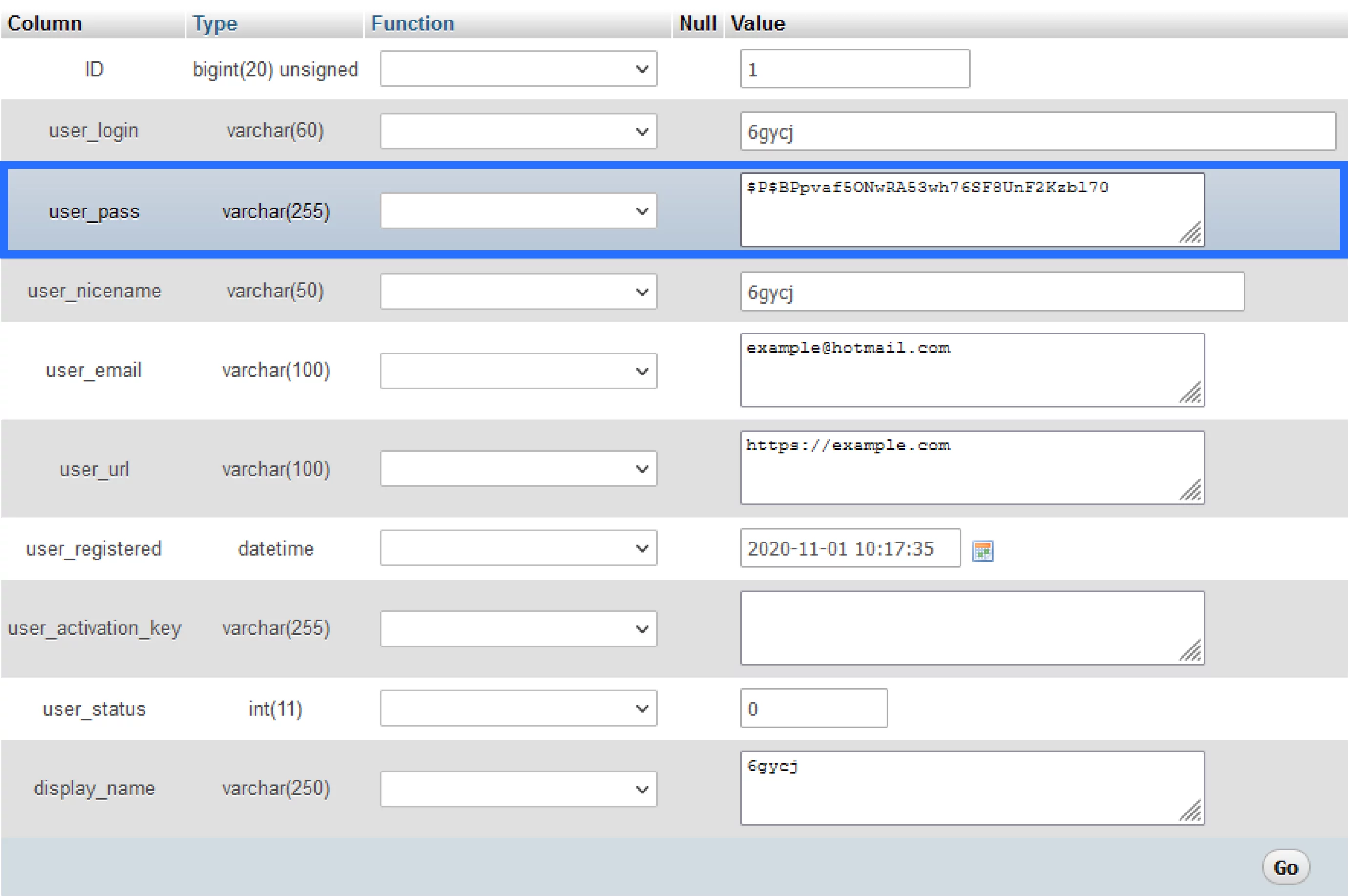
12. Select the dropdown list under the Function column for user_pass, and select the option MD5. Under the Value column, remove any existing text and enter your new password.

13. Once completed, click the Go button.
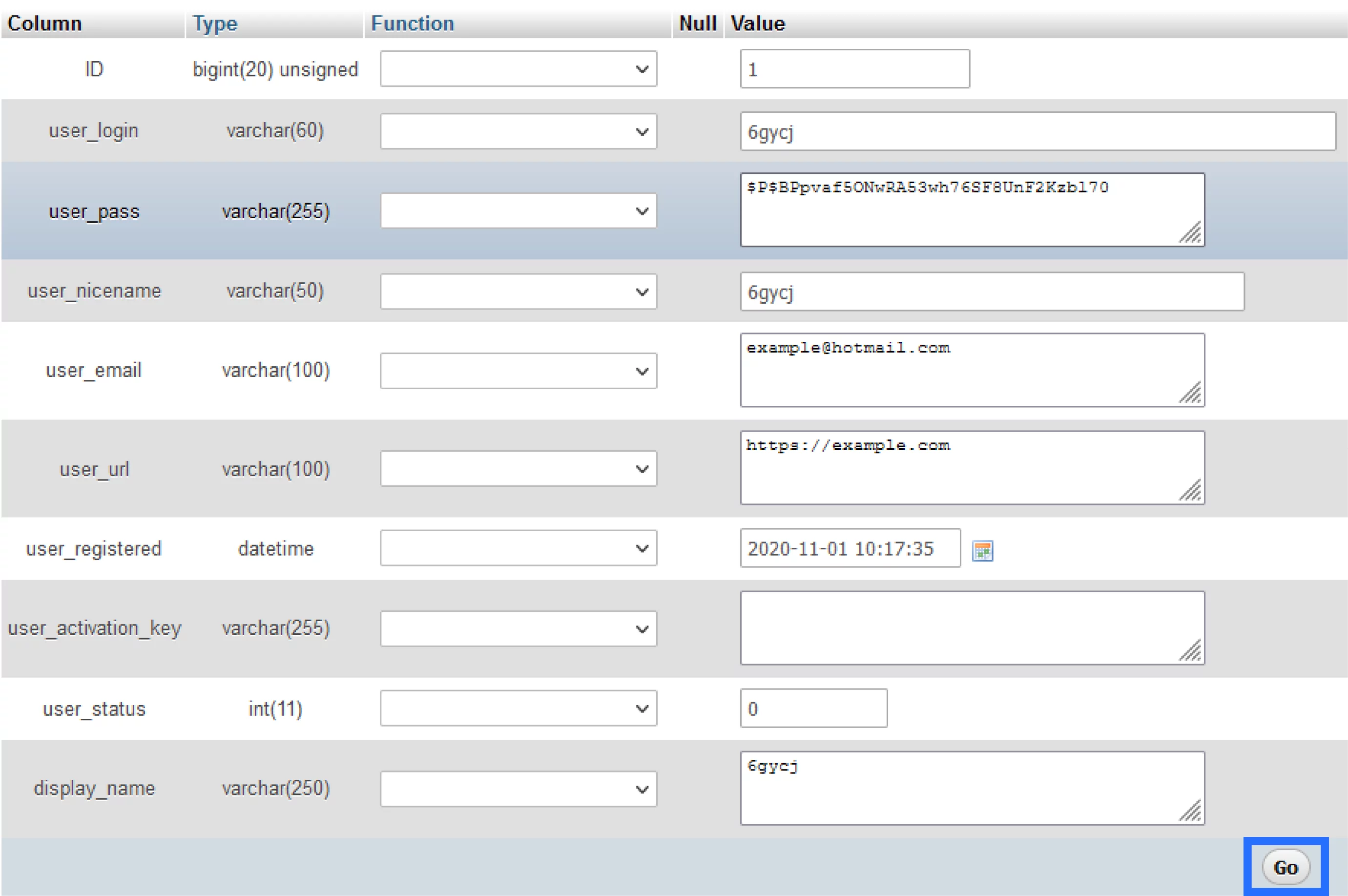
You can now log in using your new WordPress password!